Publishing a Sonarr or Radarr Content Schedule to Google Calendar via Synology


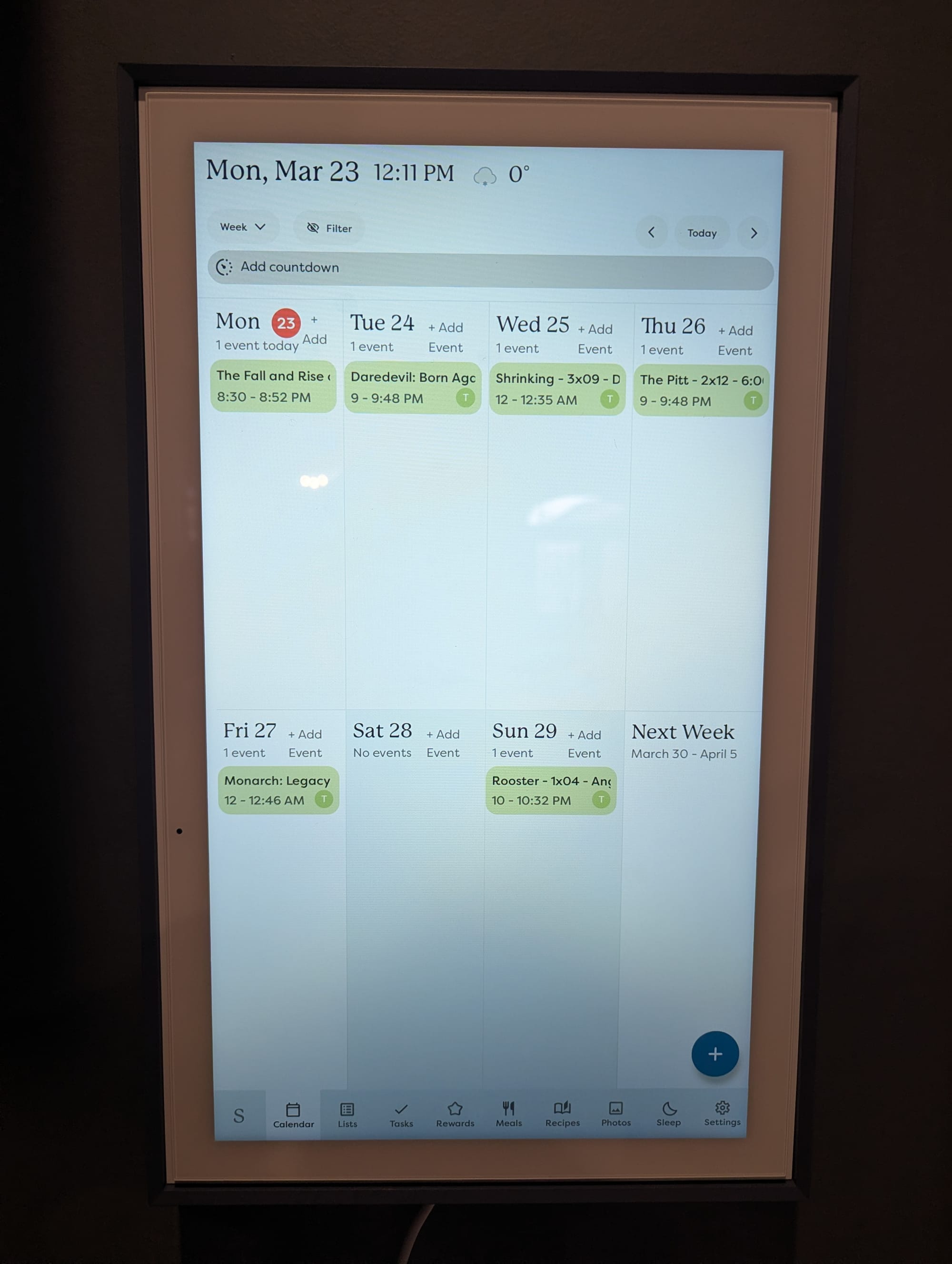
I was recently gifted a Skylight digital calendar and have been slowly working on importing my family's various events and tasks into it. I have Sonarr running on my NAS, and since Sonarr has a calendar feed, I figured why not add in my TV download schedule.
Initially easier said than done, but ultimately pretty easy.
The issue I immediately ran into was that my instance of Sonarr is not publicly accessible, so simply adding the calendar URL to my Google Calendar like I normally would to subscribe to a calendar feed resulted in absolutely nothing happening. Google has no access.
I do have a VPS running Pangolin, so I considered setting up publicly-accessible link to share to Google, but it seemed like overkill for a calendar. It doesn't need to be constantly accessible or update frequently throughout the day.
Sonarr runs on my NAS, and I'm already using the built-in backup and sync tools to save files to various cloud platforms, and since Dropbox allows for easy sharing, that was the solution.
Setup
You can be as organized or not as you want here. In DSM > File Station, I set up a new folder in my mail document Shared Folder called Published, then a subfolder called Calendar. I don't know if I'll ever want or need to publish anything else like this, but in the event I do, the structure is there.
The second thing to do here is to visit Sonarr and grab the Calendar URL. While I do have subdomains for all of my Docker services, I'm using the IP:Port for this. No clue if that changes anything relating to this setup, but it seemed like the most direct method. The Calendar URL is available at Sonarr > Calendar > iCal Link in the upper left.
The URL will look something like:
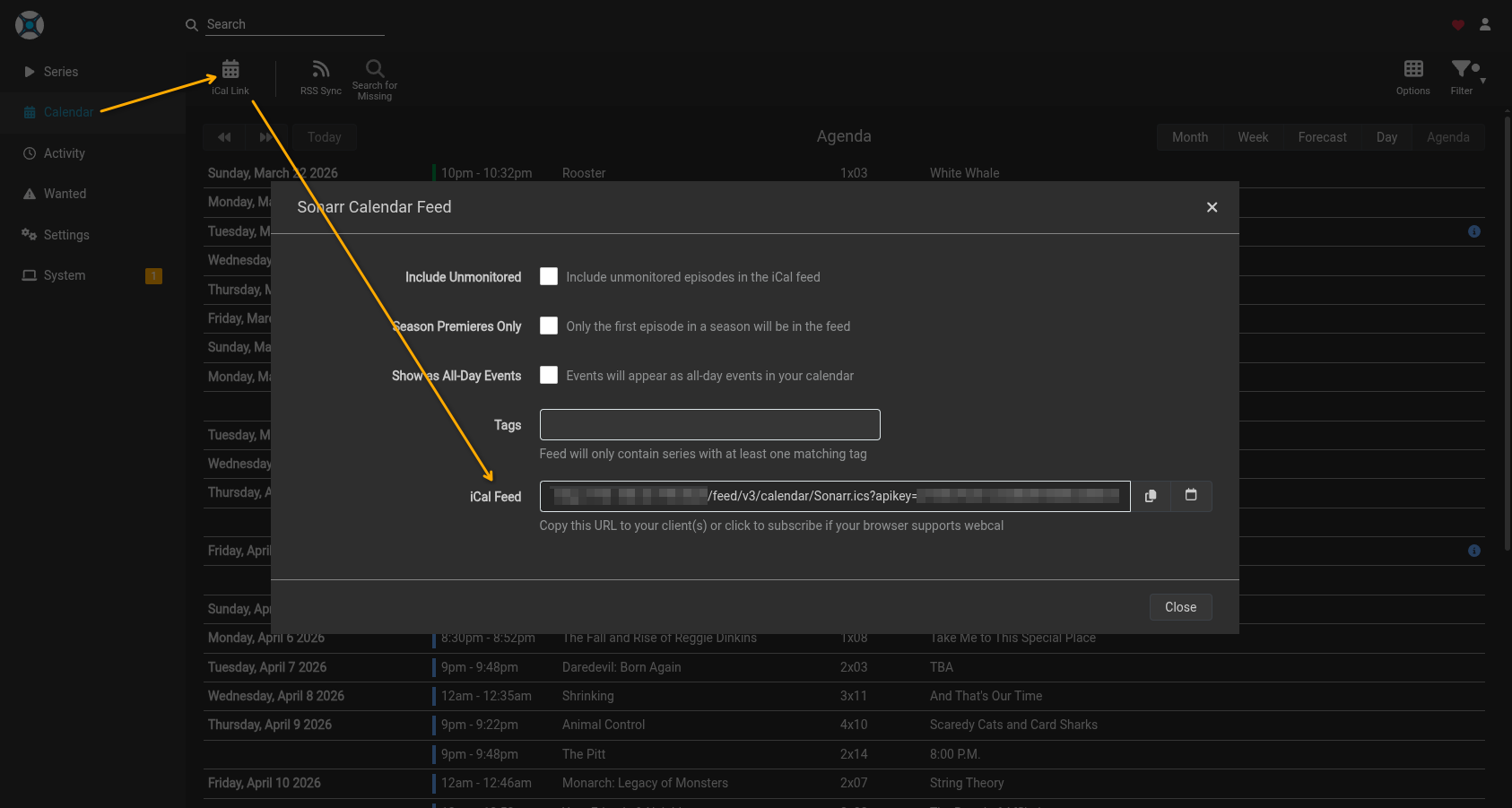
http://192.168.0.123:8989/feed/v3/calendar/Sonarr.ics?apikey=<YOUR_API_KEY>
Obviously replace the IP:Port and API key with your own.
Synology DSM Setup
The first thing is to grab the Sonarr .ics file and move it to Published/Calendar. Synology DSM is at heart a Linux-based OS, so things like cron jobs are available.
I rarely need to dig into the terminal on my NAS, so I prefer to keep any scripts in the DSM Task Manager, available at Control Panel > Services > Task Scheduler.
Click create, Scheduled Task > User-Defined Script. Give it a name and run it as root. Schedule it however you want - I've got mine set to grab the calendar file every morning at 6am. Then under settings, drop in your bash script. This grabs the calendar feed file directly from Sonarr, renames it to tvguide.ics and spits it out to your Published/Calendar folder.
#!/bin/bash curl -s "http://192.168.0.123:8989/feed/v3/calendar/Sonarr.ics?apikey=<YOUR_API_KEY>" -o /path/to/Published/Calendar/tvguide.ics"
The next part is setting up the sync. I'm already using Box.net for my more basic backup tasks, but it turns out Box doesn't allow for direct download share links. Dropbox does, however. I'm also using Cloud Sync, rather than Hyper Backup.
Cloud Sync > Create, then sign in to Dropbox. After you've logged in, add the path to your Published folder as Local Path, and the desired folder in Dropbox as the Remote Path. I also set sync to "Upload local changes only" making this effectively read-only from Dropbox. You can also set a schedule here if you want - this is currently the only thing I'm pushing to Dropbox so I didn't bother.
Google Calendar Setup
The last step is to get this connected to your Google Calendar. First we need to grab the calendar link. Sign in to Dropbox and navigate to your file. Hover over it and hit share, then copy link. We're not quite done here yet.
You shared file URL will look something like:
https://www.dropbox.com/scl/fi/<token.a>/file.jpg?rlkey=<token.b>&dl=0
The very tail end of that URL determines how the file will display. The default, dl=0, shows the standard Dropbox file interface where a user view the folder, edit content, etc. Google Calendar can't read this. To force the shared file to download, change that parameter to dl=1.
Finally, import that Dropbox URL to your .ics file into Google Calendar. Either in Settings > Add Calendar or Other Calendars + from the main view, click "From URL" and paste in the Dropbox link. Wait a moment for your content schedule will show up, after which you'll probably want to rename it and assign a custom colour.
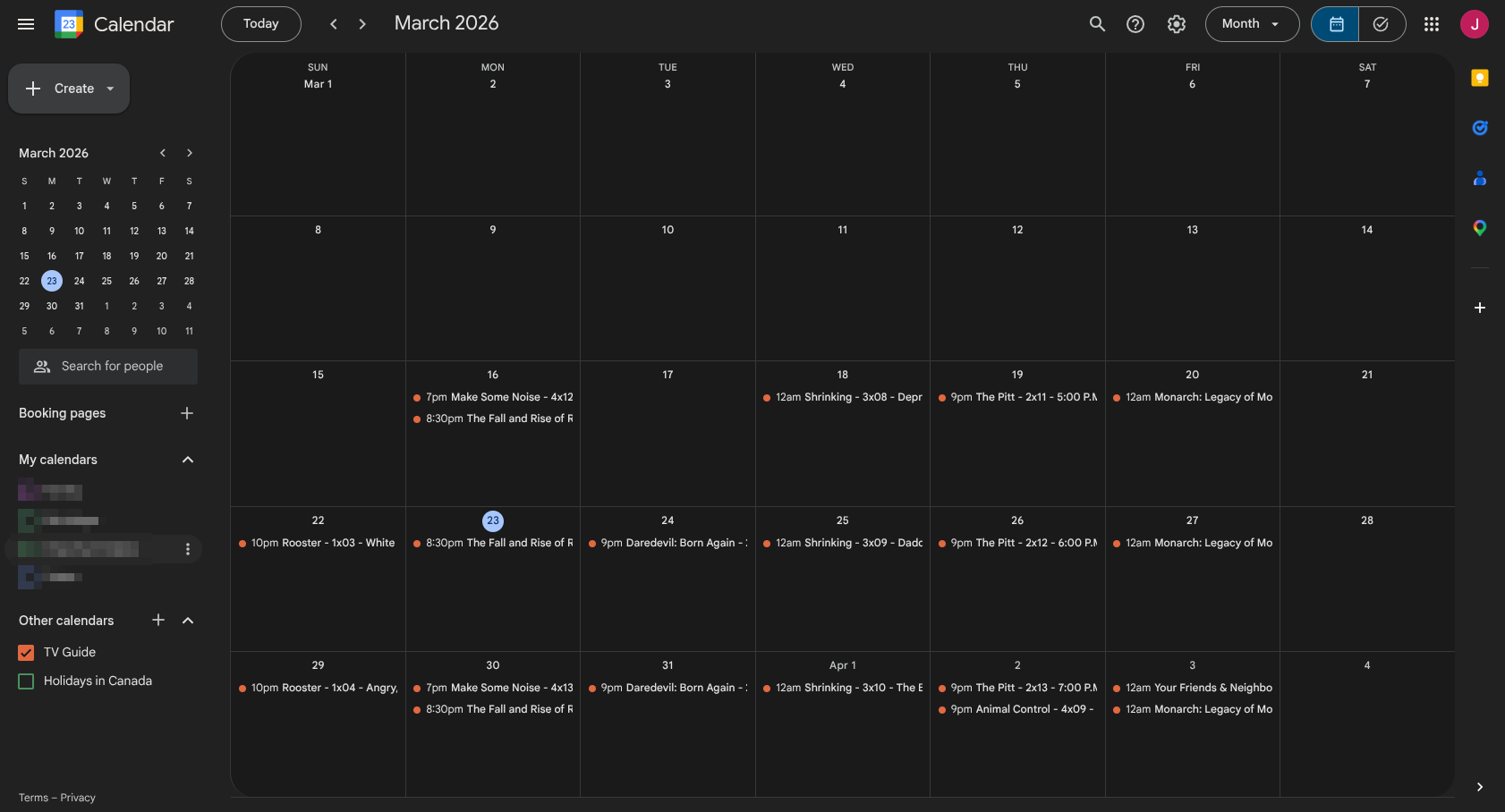
Finished Result
And finally, synced to the Skylight Calendar.
I didn't bother with my Radarr feed, but the process would be exactly the same.
Find this helpful and/or entertaining?
Consider buying me a coffee.